

A high-performance computer is crucial for CAD software like AutoCAD, Revit, and Solidworks. Here’s how you can build an optimized workstation.
The world of CAD is booming, projected to reach a massive $13.83 billion by 2028. With 3D design, a segment that was worth $5.5 billion in 2018, leading the charge, it’s no wonder that CAD professionals rely on powerful workstations to keep up. But why exactly is optimization so important?
An optimized workstation unlocks a whole new level of performance, allowing you to tackle complex projects with ease. It is the most effective way to avoid frustrating lags and stutters. With the right setup, you can experience smooth workflows, faster processing, and efficient rendering, even when working with heavy-duty files like large datasets, point clouds, and intricate 3D models.
Having an optimized workstation for CAD is not a luxury anymore, it’s a necessity. While meeting the minimum requirements mentioned above will allow you to run the software, a workstation that exceeds the minimum specs is highly recommended for a smooth and efficient workflow, especially when working with complex models and large files.
Here are some key factors to keep in mind when configuring and optimizing the ideal workstation for CAD:
- Choose a modern latest-generation CPU from Intel or AMD that has a 5GHz+ boost and professional-use GPUs like NVIDIA RTX ADA (formally known as Quadro).
- Opt for at least 32 gigs of DDR4 RAM for smooth operations, and 64 for larger projects.
- For storage, create a combination of NVMe SSD and high-capacity HDD setups for the best performance. Consider a dedicated SSD for your active projects and data.
- Maintain multiple backup hard drives and backup servers in order to keep critical data safe and secure.
- Choose a motherboard with multiple M.2 slots and USB for maximum compatibility and scalability.
- Opt for multiple 1440p or 4k displays with True Color (recommended for AutoCAD) for easy multitasking.
Build the ideal CAD workstation with Micro-Vision Computers
If you are looking for high-performance CAD workstations, Micro-Vision Computers is the place to be. Here’s one of our baseline configurations for CAD:
MVC Engineering
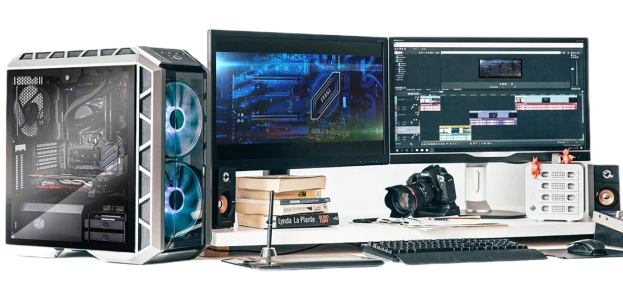
Outfitted with an Intel Core i7 14700K CPU, an NVIDIA RTX A2000 12GB GPU, 32GB DDR5 RAM, a 1TB Mushkin Vortex Gen4 SSD, and an MSI MAG B760M motherboard along with a 120mm air cooler, Noctua NH-D12L, this provides a great middle-ground for professional workstations.
You can explore more of our CAD configurations on the website, specifically the MVC Engineering and MVC Architect variants. We offer both low-end and high-end variations of each so that you have more options to choose from—depending on your workflows.
All our configurations carry a 3-year parts warranty, and we make sure that the workstation is configured, built, tested, and ready to go as soon as you plug it in. We assure the highest level of performance in all our builds, eliminating any bloatware and free trial software that may affect performance.
Get the ideal CAD workstation built from Micro-Vision Computers—we ship countrywide, within 10 days of you placing the order. Learn how to choose the right business simulation pc computers for your team Boost productivity with our guide to speccing office computers Click here to learn more













Sign in to leave a comment.