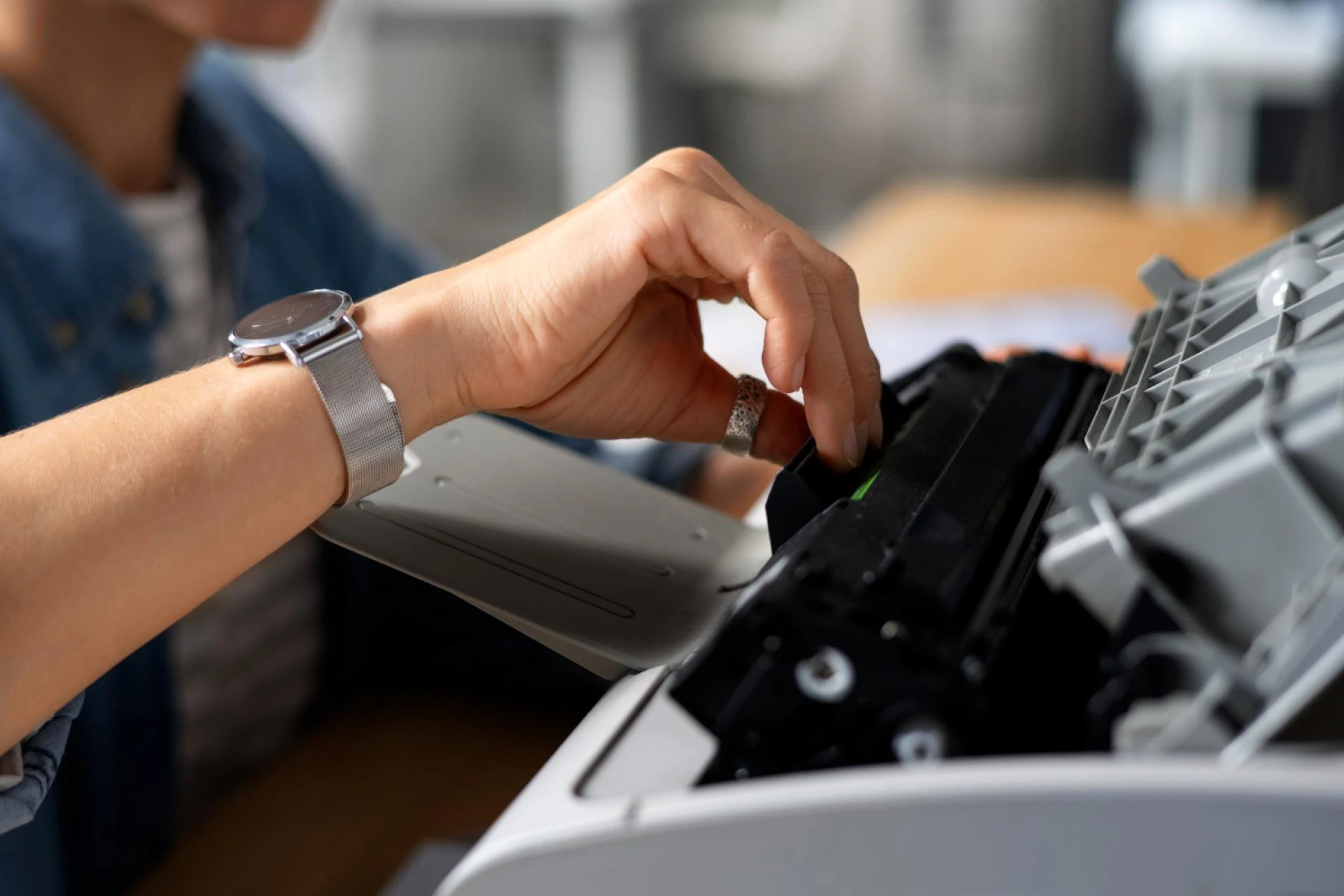

A printer that works smoothly is often taken for granted—until it starts slowing down. If your printer is taking too long to print, it can disrupt productivity at home or in the office. Printer is slow is a common issue caused by a mix of hardware, software, and connectivity problems. This guide explains why your printer may be sluggish and provides effective troubleshooting steps to fix it.
Why Does a Printer Take Too Long to Print?
1.High Print Quality Settings
Printers often default to “Best” or “High Quality” mode, which slows down the printing process as the device uses more ink and takes longer to deliver precise results.
2.Large or Complex Print Jobs
Files with heavy graphics, multiple images, or complex layouts require more time to process, especially on printers with limited memory.
3.Slow Network or Wi-Fi Connection
If you’re printing wirelessly, a weak signal or network congestion can delay communication between your device and the printer.
4.Outdated Printer Drivers
Old or incompatible drivers prevent the printer from functioning at its best speed, causing unnecessary lags.
5.Low Ink or Toner Issues
Clogged nozzles, dirty printheads, or nearly empty cartridges can slow down both print speed and quality.
6.Hardware Limitations
Older printers or entry-level models may not be designed for high-speed printing, especially when handling bulk jobs.
Troubleshooting Steps to Fix Slow Printing
1.Change Print Settings
Switching from “High Quality” to “Draft” or “Normal” mode can dramatically increase print speed without sacrificing readability for everyday documents.
2.Update Printer Drivers
Visit your printer manufacturer’s website to download and install the latest drivers. This ensures better compatibility and performance.
3.Optimize Your Connection
1)If using Wi-Fi, ensure your printer is close to the router for a stronger signal.
2)For faster performance, connect the printer directly to your computer using a USB or Ethernet cable.
4.Simplify Print Jobs
Reduce file sizes by compressing images or splitting large documents into smaller sections before printing.
5.Maintain Your Printer
Regularly clean the printhead, replace old cartridges, and run maintenance cycles offered in your printer software. A well-maintained printer always works more efficiently.
6.Upgrade Printer Memory (if possible)
Some printers allow you to add more RAM, which helps speed up the processing of large or complex files.
7.Restart Devices
Sometimes, a simple restart of both the printer and computer clears temporary issues causing delays.
When to Consider a New Printer
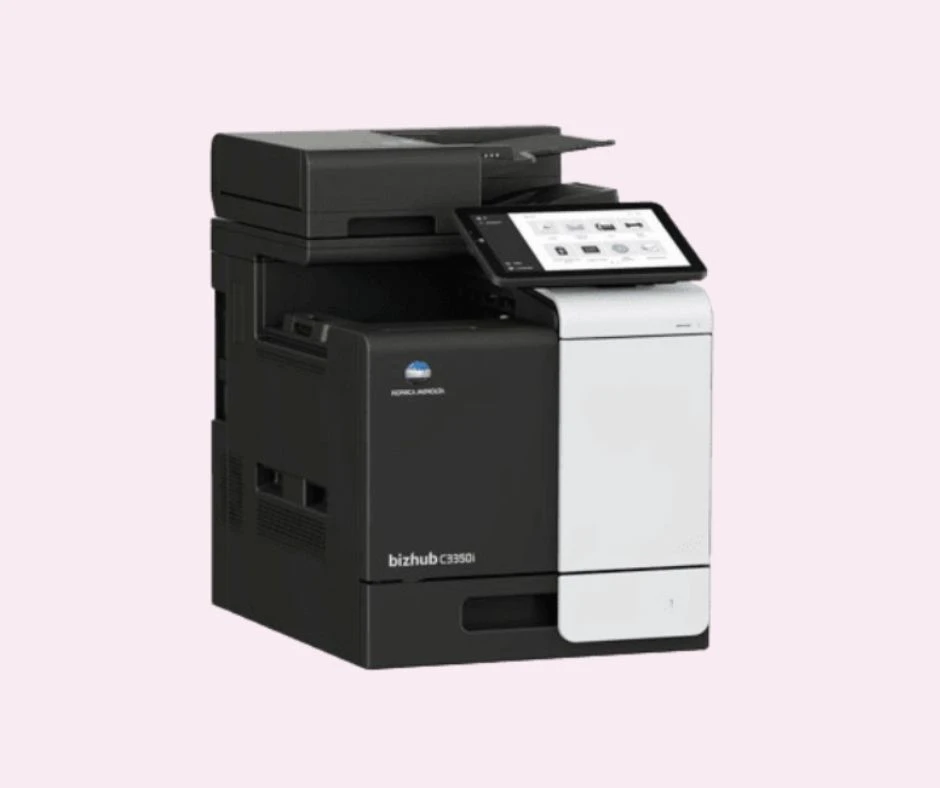
If your printer continues to perform poorly despite troubleshooting, it may be due to outdated hardware. Newer printers often come with faster processors, better connectivity, and energy-efficient printing technologies that reduce waiting times significantly.
Final Thoughts
A printer taking too long to print doesn’t always mean you need a replacement. By adjusting print settings, updating drivers, and performing regular maintenance, you can often restore printing speed and efficiency. However, if slow printing is a constant issue, investing in a modern, high-speed printer might be the best long-term solution.










Sign in to leave a comment.